PoMM User's Manual
Module Overview
Purpose of the Policy Making Module
The objective of the Policy-Making Module (PoMM) is to enable users to analyze the impact of changes in the policies related to the adoption of NBS (or hybrid NBS) for mitigation of CECs from urban runoff, hence enabling users on both science and policy sides to devise what changes would be more effective.
In order to link the PoMM to real-world applications, this general objective has been declined into three specific objectives (or Central policy issues, CPIs) that allow decision-makers to explore, in a given context, the best ways
- to include NBSs among customary or preferred solutions in spatial planning;
- to include CECs in water monitoring plans;
- to develop a pilot management plan of CECs from urban runoff that includes NBS solutions.
To make all this possible the PoMM hinges on three pivots:
- Knowledge representation,
- Policy / decision case definition (mapping of case playground),
- Questioning, analysis of the outcomes of modelling/simulations, reporting for decision.
Who is the PoMM intended for
The PoMM is specially conceived for decision-makers and policy-makers who are involved (or might be involved) in the formation of policies and rulemaking about the adoption of NBS for the mitigation of runoff CECs.
Intended users of the PoMM include:
- Policymakers-rulemakers at town, province, regional level
- Bureaucratic and administrative agents (including controlling and permitting bodies)
- Politicians
- Planners
- Scientists.
From the PoMM viewpoint, user categories are not linked to the actual role played by a user in real-life (a user can play any role, real or fictional). Having this in mind, the PoMM is applicable to both actual and potential situations.
Key functionalities
The key functionalities of the PoMM module are described in the following table:
| Submodule/Functionality | Description |
|---|---|
| Knowledge representation | includes the terminology service which assures a common understanding across all PoMM parts, the information stored about the cases under study, and the guidelines for the different types of experiments |
| Policy / decision case definition (mapping of case playground) | includes the tools to describe the case under study in which PoMM experiments take place, to formalize the existing decision-making and policy-making procedures, information flows, and practices following the Business Process Model and Notation (BPMN), and to assign NUTS, NBS and CECs considered. |
| Questioning, analysis and reporting for decision support | includes the tools and interfaces to transform a research question into a PoMM query by designing experiments, then analyzing the outputs obtained. Reporting encompasses the tools to communicate the results in ways suitable for the intended targets. |
How to access the PoMM
You can access the PoMM module via the AI-DSS Platform following general login instructions and pressing the appropriate link on the platform's side menu.
User System / Device requirements
For optimal performance, the following hardware and operating system configurations are recommended:
- Operating System:
- 64-bit Windows 11, macOS Ventura, or latest Linux distributions
- Processor:
- Quad-core CPU (Intel i5/i7 or AMD Ryzen 5+)
- RAM:
- 8 GB or more
- Web Browser:
- Latest version of Chrome or Firefox (for best compatibility and speed)
- Display:
- 1080p (Full HD) or higher resolution
- No installation is needed.
- NetLogo Web does not support all features available in the desktop version of NetLogo. For advanced functionalities, consider installing the desktop version.
When using the PoMM, it is very important that you do not use the back/forward buttons of the browser as you run the risk of compromising your session and having to start over: just use the buttons and links that appear in the interface.
A matter of privacy
After following the link on the platform's side menu to access the module, yor are asked again to accept a specific privacy policy concerning your information and its handling in the PoMM [Fig. 01].

The PoMM does not store user data, including uploaded files, configurations, models, simulations, or reports, beyond the duration of the active session. Once the session ends, all data will be permanently deleted from the platform's servers.
It is your sole responsibility to download and securely save any data, reports, or configurations generated or uploaded during the session. The PoMM is not liable for any loss of data due to failure to download or save session outputs.
While the PoMM platform implements standard security measures to protect active session data, users are advised to avoid uploading sensitive or confidential information.
If you do not agree to the policy conditions, you are redirected to the public area of the Help section of the module.
Strike the right button
The PoMM offers a wide variety of specific features all geared towards making your journey as satisfying and useful as possible.
It is important to strike the right button to start with! [Fig. 02]

- Start New Session: Begin a new policy modelling session from scratch.
- Restore Session: Resume a previously saved modelling session.
- Process templates: Decide your strategy answering some questions to start a new session with a pre-configured process template.
- Agents simulation: Proceed with the Agent Based Simulation.
- Thesaurus & Vocabulary: Access the standardized terminology and definitions.
- Help & User's Guide: Access comprehensive documentation and user guides.
Brief flow of operations
The flow that users follow in the PoMM goes through 5 main steps:
- description of the case under study defining what the starting experimental context looks like with respect to the objectives to investigate (i.e.: to include NBSs among customary or preferred solutions in spatial planning; to include CECs in water monitoring plans; to develop a pilot management plan of CECs from urban runoff that includes hybrid NBS solutions)
- definition of an intervention to influence the baseline context in order to facilitate the achievement of one's goal (where should/can I act? how?)
- analysis of the outcomes of the experiment performed (how does the hypothesised intervention change my initial context? what are the results obtained? am I closer to my goal?)
- documentation and sharing of results (how do I document and share the results of my experiment with other interested stakeholders?)
- overcoming doubts and obstacles in experimentation (what tools do I have to deepen and reduce the risk of language ambiguity/equivocality across different knowledge domains and fields of practice involved in my experiment?).
Difference between network modelling and agent based modelling
There are two main modelling approaches in the PoMM:
- a network modelling approach to mapping out the relationships among variables that affect CEC-NBS decisions in a real-world procedural decision-making process to reveal the overall structure of the system, observe how the system behaves without any intervention, define what are the interventions needed to change the final state of the system to own advantage;
- an agent based modelling approach simulating the actions and interactions of individual "agents" (could be different stakeholders but also NBS solutions) within the system to explore what behaviour could emerge as a response to pollution risks, floodings, etc. It's like creating a virtual world where watching how individual behaviors add up to create larger and complex patterns.
By combining them, users can create models that are both cognitively realistic and dynamically rich and this is particularly valuable for studying complex systems, as in the case of the use of NBS solutions to mitigate the pollution effects of CEC contaminants from urban runoff phenomena.
The two modelling methods are managed separately in the PoMM, accessed from two different functions in the main menu that are not interconnected.
Generally speaking, in a logical sense, the networking modelling takes place ‘before’ the agent based modelling.
That's because the network modelling approach provide the "cognitive" framework, the understanding of how factors interrelate and helps to decide where to intervene.
The ABM approach provides the "behavioral" framework, the simulation of how agents act, and allows to explore and compare the sentiment and social response to NBS for CECs depending on factors like front and maintenance cost, risk-mitigating capacity, etc.
In PoMM you can choose which modelling system you want to use: you can use both if you want to get the best out of your analysis.
But you can also decide to use only one because you consider it more suitable for the type of reflections you are making.
Furthermore, both modelling techniques allow you to choose your own approach: are you interested in a purely descriptive or observational approach to gain a better understanding? Or are you interested in an approach that involves intervening on what you are observing and understanding the effects of your intervention? Are you interested in evaluating the impact of any changes following your intervention hypotheses? And from what point of view?
The PoMM allows you to do all this: read the following suggestions and user instructions very carefully to find your winning strategy!
Knowledge representation
The first pivot of the PoMM module is knowledge representation.
We aimed to create clear, machine-readable definitions for key terms, establishing logical connections within the PoMM framework and simulations. This minimizes misunderstandings caused by differing interpretations of language across the various fields involved in D4Runoff.
Activities like CEC characterization, NBS classification, policy-making guidelines intersect on the same case from different perspectives and with diverse vocabularies.
Sometimes the meaning of important terms that we use are confusing (multiple meanings depending on context or user, or synonyms) or a term is authoritatively defined somewhere, but its definition does not fit well with our shared domain.
Terminology (vocabulary, thesaurus and ontology)
The D4Runoff Thesaurs is a controlled and structured vocabulary, related to the domain the project deals with in, which concepts are represented by terms, organized so that relationships between concepts are made explicit.
The D4RUNOFF Thesaurus:

- Ensures everyone understands the information structure (common meaning).
- Clearly states the assumptions made about the subject.
- Checks that the subject information is consistent (verifies accuracy).
- Allows the subject information to be used again in different ways.
- Separates subject knowledge from how it's used.
- Simplifies searches and makes it easier to find information.
You can access the Thesaurus by simply clicking on the button on the main menu: a new browser window will open, allowing you to have the main definitions at your fingertips so that you can better understand how to design your case study [Fig. 03].
You do not need to authenticate to the Thesaurus.

What you can do
The use of the vocabulary/thesaurus is very intuitive.
On the main page [Fig. 04] you can find:
- a bar on which to write the term you want to search for
- an alphabetical list on which you can click to search
- a list of main contents at your immediate disposal that help you understand some of the most relevant elements which represent the scope of analysis of the PoMM or are useful for your experiments
- a link to an advanced search.
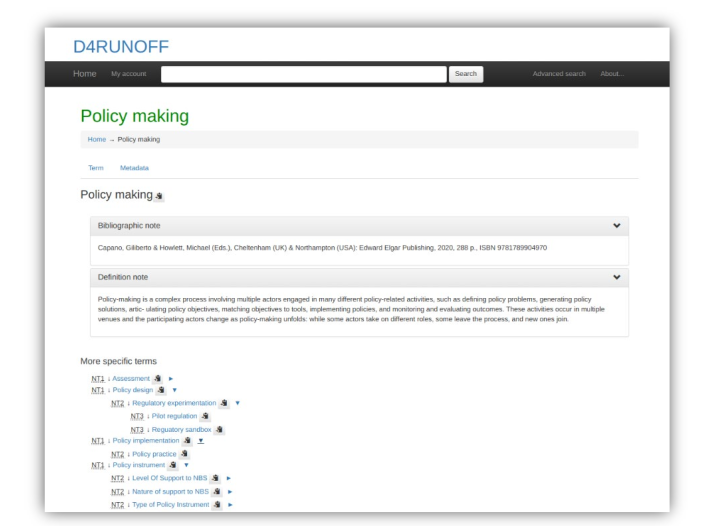
Fig. 05 - Example of a concept of the Thesaurus and its relationship

Note that the "My Account link" on the navigating bar is only available to system administrators.
The interface [Fig. 05] allows you to:
- see the description of each search term
- read definitions and bibliographical notes
- directly access other terms related to the entry you searched with more specific, broader, equivalent, preferred or semantically related meaning.
Note that the interface is multilingual but the contents are in English.
In the same screen of a defined term, different kinds of relationships are displayed allowing you to move easily from one term to another via the different links.

There are different kind of relationships you can find in the D4Runoff thesaurus that can include:
- hierarchical relationships such as broader term (BT) and narrower term (NT). These terms denote relationships between the concepts (not the terms) and indicate whether a concept contains or is contained by another concept. Hierarchical relationships can be used to broaden and narrow a search effectively and ensure that narrower terms fall within the scope of the broader terms;
- equivalence relationships such USE and UF (Use For). They are used to denote equivalence between terms (not concepts) and to distinguish between preferred terms and their synonyms (a term, which has the same meaning or covers the same concept as another term or multiple terms) or quasi-synonyms (a term that does not usually have the same meaning as the preferred term but does in the context of a specific thesaurus) [Fig. 06];
- associative relationships such as related terms (RTs). They are used to indicate that different terms in a thesaurus are related in some way or have an overlapping scope. They thus allow users to expand their initial search into different aspects of the subject.

The advanced search [Fig. 07] allows you to navigate the Thesaurus also, for example, from the notes that have been associated with each term, doing your own free search.

The Thesaurus is linked to qualified sources and validated vocabularies
- EUROVOC: a multilingual thesaurus (controlled vocabulary) maintained by the Publications Office of the European Union, used by the European Parliament, the Publications Office of the European Union, the national and regional parliaments in Europe, some national government departments, and other European organisations [Fig. 08]
- AGROVOC: a multilingual controlled vocabulary covering all areas of interest of the Food and Agriculture Organization of the United Nations (FAO), including food, nutrition, agriculture, fisheries, forestry and the environment.
- GEMET - GEneral Multilingual Environmental Thesaurus: a source of common and relevant terminology used under the ever-growing environmental agenda that has been developed since 1995 as an indexing, retrieval and control tool for the European Topic Centre on Catalogue of Data Sources (ETC/CDS) and the European Environment Agency (EEA), Copenhagen.
- EARTh - Environmental Applications Reference Thesaurus: represents a general- purpose thesaurus for the environment. It promises to become a core tool for indexing and discovering environmental resources by refining and extending GEMET.
Knowledge repository
The PoMM knowledge repository (help, user's manuals, technical documentation) has been organised as a semantic-rich website.
It was developed on the basis of the Mediawiki platform, an extremely powerful and scalable software, which enables the implementation of feature-rich wikis and allows you to move freely between contents depending on your qualification as a user. [Fig. 09]
What you can do
On the main page, you can access the main content and information.

From this page it is possible to reach every area of the help feature.
If you are a registered user (from the AI platform), you can access a restricted area that contains the Comprehensive Knowledge Base and Full Documentation and allows to:
- access the FAQ system and specific tutorials
- analyse case studies (including D4Runoff pilot sites) and applications of the PoMM in other contexts
- deepen the policy scenario
- deepen the underlying principles, mechanisms, and technology choices incorporating the theoretical body of knowledge that supports PoMM operations
- access targeted bibliographies and other useful resources
- access technical documentation about the technology, architecture, core modules and interconnections.
Policy / decision case definition
In the PoMM, you build policy scenarios to map out the steps involved in making decisions that affect well focused central issues in order to operationalise the exploration, design and analysis of changes in the policies related to the adoption of NBS and hybrid NBS for mitigation of CECs from urban runoff.
Upstream of the activities for which the platform can offer support in your thinking, you should start by formulating your "research question" and keep it in mind all along the way: what are you trying to answer? What do you want to explore?
This step is fundamental to the entire PoMM process, serving as its core and ensuring the coherence and consistency of experiments and results.
Just to give you an idea of the type of questions on which you would like to reflect...:
- How can municipal procurement regulations be amended to effectively integrate Nature-Based Solutions (NBS) into the terms of reference for urban planning and design tenders?
- Within the existing municipal regulatory framework, which department—urban planning or public works—offers the most effective point of intervention for promoting NBS adoption in routine roadside renovations?
- Given the current regional legal framework, at what stage in the decision-making process would political advocacy be most impactful in securing a bill that mandates a recurring budget for CECs monitoring?
- Which office holds the greatest influence in obstructing regulations aimed at making CECs management plans mandatory?
- Which proposed NBS regulation, “A” or “B,” will have better impact and be more viable?
- Considering the current regional legal framework, where within the decision-making hierarchy should political pressure be applied to successfully delegate runoff management to water utilities?
- ....
As you can easily imagine, all these questions bring with them the initial need to understand the boundaries of your system and how things work today in your context.
Essentially, it's a way to visualize "your world" in relation to the relevant policy-making cases as it is, to create the ‘laboratory’ of the experiment and to map the framework of the case under study.

Typically, the definition of the policy/decision case starts with network modelling.
Procedural description (network modelling) of the case
To outline your case you have to start a new session from scratch.
From the main menu choose |Start new session| [Fig. 010]
Outline the case under study
You will need to outline your case study by following the steps below.
(1) Defining the geographic boundaries of your physical system
Your context will change radically if you are involved in analysing policies acting at different territorial levels: the policy processes or stakeholders to be involved may also change greatly. The PoMM allows you to keep track of the territorial level at which you are reasoning.
| Select the NUTS level to which your analysis relates.
NUTS (stands for Nomenclature of Territorial Units for Statistics) are statistical codes to define a geographical area in the European Union. The NUTS system divides each EU country into three levels: NUTS 1 (Major socio-economic regions); NUTS 2 (Basic regions for the application of regional policies); NUTS 3: Small regions for specific diagnoses. [Fig. 011] |
 |
| You can change the NUTS map display level in the top right of the screen and then directly select your area from the map of Europe on the left of the screen.
You can zoom on the map for better resolution. [Fig. 012] |
 |
| Most PoMM analyses will be probably reflected in NUTS 2 or NUTS 3 level areas.
If you select NUTS 3 level, you can also choose Local administrative units (LAU) from the contextual drop-down menu. [Fig. 013] |
 |
| Once the NUTS/LAU is selected, confirm selection to set the LAU code, if needed. [Fig. 014] |  |
| Press |Next ->| to complete the geographical information. [Fig.015]
If you realise you have made a mistake, you can go back and change your choice clicking on |<- Back| . The geographical boudaries of your system is now completed. |
 |
(2) Select the targeted Natural based solution
The same reflection made for the territorial dimension applies to the type of NBS solution you are investigating: again, not all solutions act on all territorial levels or require same implementation or regulatory processes. Also in this case the PoMM allows you to keep track of this in your simulation even though in this case the identification and evaluation of the NBS should have already been developed in other sections of the AI platform that are dedicated to this purpose.
| The definition of your case study should be linked to the choice of the NBSs you would like to apply: to investigate which NBS is right for you, you will have already used other areas of the AI platform. In this section of the module, you can select them to keep track of your starting framework.
However, if in your case study, you do not need to select an NBS, you can simply confirm your choice not to select it. [Fig. 016] |
 |
| Choose NBS from the drop-down menu and press on |Confirm selection|. [Fig. 017]
The candidate NBS solutions in the drop-down menu are those made available from the University of Cantabria on the AI platform in the solution library section. |
 |
| The system will display a brief description of the selected NBS: you can then either verify your choice. [Fig. 018]
Press |Next ->| to complete the NBS information. If you realise you have made a mistake, you can go back and change your choice clicking on |<- Back| returning to the NUTS choice screen. The NBS selection for your unit of analysis is now completed. |
 |
(3) Choose the targeted Contaminants of emerging concern (CEC)
The contaminants you are investigating are also related both to the NBS solutions you have chosen and to specific problems that equally may have to be considered in very different policy making processes. Again, the PoMM allows you to keep track of them in your simulation of the CECs you have identified. As with NBSs, the identification of targeted CECs should already have been developed in other sections of the AI platform that are dedicated to this very purpose.
| Next step in defining your case study (or unit of analysis) is the choice of CECs : to investigate which CEC is more relevant in your case, you will have already used other areas of the AI platform. In this section of the module, you can select them to keep track of your starting framework. [Fig. 019] |  |
| Select family of CEC from the drop-down menu.
The target CECs are chosen from a list provided by D4RUNOFF Partners working on the topic on the AI platform in the CECs library section. If you want to refine your search, you can also select compounds or CAS from the drop-down menu. [Fig. 020]. Press on |Confirm selection|. |
 |
| If you realise you have made a mistake, you can go back and change your choice clicking on |<- Back| returning to the NBS choice screen. [Fig. 021].
Press |Next| to complete the CEC information. The CEC selection for your unit of analysis is now completed. |
 |

The system allows you to keep a note of the choices you have made, possibly adding your comments so as to keep a written trace that will feed back into the reporting of your experiment. [Fig. 022]
You can also leave the proposed text unchanged in the dialogue box that appears but we suggest you that you use these spaces to make your notes.
The activity of modelling decision making processes and scenario setting is a complex activity that may also require interactions and comparisons between different actors. By doing so, you do not risk losing valuable information.
With this first three steps you have completed the Unity of analysis definition (NUTS, NBS & CEC)
To proceed to the next stage of your case study baseline press |Next|.
(4) Define the actual (current) decision workflow diagram
To be able to intervene in a decision-making process and understand where and how, it is necessary to describe it.
| In the PoMM, this description is done through the use of an interface to represent the decision-making diagrams.
The notation used is the BPMN (Business Process Model and Notation). [Fig. 023] |
 |
| BPMN is a visual modelling language for process workflows. It is an open standard notation for graphical flowcharts that can be easily understood by all stakeholders. [Fig. 024].
In our case, the BPMN represents the end-to-end flow of a policy process. The notation makes it possible to coordinate the sequence of processes and messages flowing between different process participants in a set of related steps. Even using only the basic notations of the BPMN, you can describe all usual procedural steps in policy and decision making processes. |
 |
| Here you find some basic hints for using BPMN notation with the PoMM BPMN interface. |  |
| If you do not want to describe your process directly within the PoMM BPMN interface or you already have designed your BPMN diagram using your modelling software, you can use your saved file. Upload it simply dragging and dropping in the interface.
But please make it sure it is in a compatible format (that is *.bpmn) otherwise you'll get an error message. |
|
| To facilitate this step, if you are not familiar with the BPMN diagram, you can also choose an easy route where you can use some ready-made templates.
|
 |
| You have to answer a short survey to select what are the central policy issue you will explore, defining what type of action (regulatory or operative) do you plan to carry out, and what is your policy decision framework (risk driven, value driven or return driven).
The system will take care of selecting the most suitable template based on the strategy you have chosen. Of course this is an example, which is plausible but which you should then adjust according to your needs: your real situation may in fact be different from the one proposed. |
 |
| Then, after answering the survey, you proceed normally from step (1) Defining the geographic boundaries of your physical system to the initial setting as explained before. | |
| When you get to step (4) Define the actual (current) decision workflow diagram you will already find on the PoMM BPMN interface a ready-made template chosen on the basis of your answers and pre-designed on a plausible similar case.
You can modify it to adapt it to your case, removing some steps, revising annotations, adding elements etc. |
 |
| Now you need to individuate which are the entities in your process you consider potentially interesting for the subsequent modelling and simulation of policy making and interventions on it.
Depending on the focus of your investigation, you will need to ask yourself, for example, which elements of the process you want to concentrate on and define the variables that best express them. For example, if you think you can influence a task in your process that is ‘holding public meetings’ (perhaps to discuss the inclusion of NBS solutions in current construction processes), the linked variable could be ‘the level or index of stakeholder and local community involvement’. The reason why this step is necessary is precisely to allow you to isolate, in the decision-making process, the network of relationships that you are most interested in investigating, in order to allow simulations to understand what further actions (in relation to those identified) you can take to achieve your objectives. If you opt for the |Process Template| option, you will find these elements already prepared in the templates and they can serve as an example to ease your analysis. |
 |
| For each selected entity you must add an annotation indicating what is the main variable associated to it.
Generally you will add notes to some of the tasks that are present in your BPMN process. You can do this simply by using the small tool that appears when you pass the mouse over the ‘task’ object and than "add a text annotation" and write the not. It will appear next to the task.
|
 |
| Taking care to choose and describe the variables in such a way that they can be measured in a minimum to maximum range: this method will help you a lot in the following steps of modelling.
The annotation of entities is a fundamental step, otherwise it will not possible to define those that you want to deal with in the subsequent modelling and simulation network. To have a fairly rich and interesting simulation, we suggest you identify at least 7 variables connected to the different entities in your process diagram (it would be better between 7 and 12). Bear in mind that this step helps you to reflect in a very precise way on the case you are analysing, helping you a lot to outline the most interesting elements. |
 |
| If you annotated or modified a diagram (whether it is the diagram that you create directly in the interface, or the one that you modify starting from a loaded template or from your file that you have uploaded to the system) you must select the |Next| button and continue your simulation up to the next check point (see below: 5 - Identify the most important entities for the decision workflow) otherwise your annotations are permanently lost! |  |
(5) Identify the most important entities for the decision workflow
Once you have defined in the previous step the decision-making process involved as it currently is, having identified some entities to analyse and their variables, you will have to go through the last mile of this phase in order to have your first baseline report.
This involves selecting the variables that you defined in the BPMN in the form of notes and that will be shown in an interface where you can decide which ones will be analysed in the simulation.
Note that if you haven't inserted any variables in your BPMN (in the form of an annotation) you won't be able to select any nodes and therefore won't be able to proceed with the simulation proposed by the PoMM.
| After clicking on |NEXT| from the BPMN interface, you will find yourself in the environment for identifying the variables you have focused on. They will appear in the form of clickable nodes that you can select. |  |
| The interface allows you to select each node that will appear on the map box: click to confirm your selection (the node turn red). |  |
| You can also select your nodes from the drop-down menu above the map box. |  |
| In any case, before proceeding further, check carefully which nodes you have selected.
Press the button |Next to checkpoint| to complete this first cycle and download the file package related to the outline of your case study. |
 |
| You can add your comments about the work you have done in outlining the decision-making process you want to intervene in and have identified your points of interest.
This will help you keep track of your reasoning and will flow into a report that you can share. After adding your comments push |NEXT|. |
 |
| Now you are asked to download the Intermediate Report of your Experiment that describes what you have done until now, to outline the case under study and set the boundaries of the experiment.
In addition, the work done will be saved so that you can restore your session if you need so. You must download the Intermediate Report and the back-up files to be allowed to the next step: this is a form of guarantee to prevent you from losing the data you have entered. The system does not automatically save them for privacy reasons. |
 |
| If you don't intend to continue with the analysis after this check point, by downloading the file package you can also restore the session in another moment deciding which of the phases to restore.
From point 1, reloading your choice of NUTS, NBS, CEC; from point 2 reloading your BPMN diagramming file, from point 3 also reloading your chosen entities. You can decide to load also the entire package which will include the notes you added at this checkpoint, allowing you to start again right where you left off and beginning the simulation. To restore your file, if needed, access from the PoMM main menu on |Restore Session|. |
 |
| The *zip file you download at the Intermediate Report checkpoint contains 3 folders and a series of files necessary for the various restore phases. |  |
| A very simple interface will guide you through restoring them.
Please be careful! Upload the files gradually in the order in which they are requested by the interface. Once you have uploaded the first ones, you can proceed further in the restore by pressing |Continue to upload|. |
 |
Bottom-up modelling (agent based) of the case
Outiline the case for ABM exploration

The Agent simulation is a separate function of the PoMM module, based on netLogo Web application, which you can access through the main menu.
In this case, your interface will directly load a basic simulation model. This model was prepared as part of the D4Runoff project for the PoMM module.

This is an agent-based model simulating the adoption dynamics of Nature-Based Solutions (NBS) within an urban environment. It explores how citizens, property owners, and a dynamic public authority interact under risks from flooding and Contaminants of Emerging Concern (CEC) pollution in urban runoff. The model focuses particularly on how different conditions and policy choices influence NBS uptake and its subsequent impact on mitigating pollution.
The interface is a console from which all the necessary simulations can be carried out using a series of elements already present.
Before starting: How the model works
The model operates on a 2D grid representing an urban area, with a portion designated as water. Land patches have varying elevation and initial flood/pollution risk based on proximity to water and elevation. These risks decay slowly over time.
When the model has only just been loaded, the grid appears black.
1. Environmental Events: Stochastic flood and pollution events occur based on user-defined frequencies and intensities. Events increase risk locally on affected patches and add to the memory of agents present. Pollution events also directly increase CEC contamination in water bodies.
2. Agents:
- Citizens & Owners: Perceive risk based on local patch conditions, mitigation from nearby NBS, and proximity to water. They maintain a decaying memory of past risk events. Their sentiment towards NBS adoption evolves based on: Positive Boost: A city-wide, non-cumulative boost occurs once per day if any CEC monitor detects high contamination (>0.5). Negative Feedback: Sentiment decreases slightly if the average city-wide CEC contamination remains below a threshold (hardcoded: 0.15) for a sustained period (hardcoded: 30 days). Social Influence: Weekly adjustments based on the average sentiment of nearby agents.
- Decision Making: Citizens may petition the Public Authority (PA) if memory and risk are high, and may relocate if risk is persistently high and they have economic capacity. Owners decide whether to adopt NBS based on their type: Residential: Considers sentiment, risk, NBS cost, and economic capacity (adjusted for tax burden). Commercial: Calculates Return on Investment (ROI) based on risk reduction potential vs. NBS cost.
- NBS: Created by owners upon adoption. Attributes (cost, mitigation power, radius) depend on the owner's risk level at the time of adoption. NBS reduce local risk as they become effective, but their effectiveness can decay over time.
- CEC Monitors: Located in water bodies, they can directly mitigate very high local CEC levels (>0.7) and trigger the city-wide positive sentiment boost (>0.5).
- Public Authority (PA): Dynamics (Monthly): Its
political-alignment(pro-environment vs. pro-development),policy-strength, andinfluence-strengthare updated based on average risk, average CEC, petition count, its own budget, and user-set sensitivity parameters (sliders). Higher pressure/pollution tends to push alignment towards pro-environment (+1), influencing policy strength and tax rates. Actions (Annual/Ongoing): Collects taxes (rate influenced by alignment/policy strength; agent contribution based on economic capacity and risk exposure), adjusts its budget, probabilistically offers subsidies for NBS adoption to high-risk owners if budget allows.
3. Key Feedbacks: The model includes loops such as: Risk -> Sentiment/Petitions -> PA Dynamics -> Taxes/Subsidies -> Agent Economics -> NBS Adoption -> Risk Mitigation. Also: Pollution -> Monitor Detection -> Sentiment Boost/Drop -> Adoption -> Mitigation -> Pollution. How to use it
How to use it
Interface Controls:

Sliders:
flood-frequency-slider,pollution-frequency-slider: Control the daily probability of flood/pollution events (0-0.2).flood-intensity-mean-slider,pollution-intensity-mean-slider: Set the average intensity for events (0-1).flood-intensity-sd-slider,pollution-intensity-sd-slider: Set the standard deviation for event intensity (0-0.5).num-citizens-slider,num-owners-slider,num-cec-monitors-slider: Set the initial number of these agents.pressure-sensitivity-slider: Controls how strongly citizen pressure (risk, petitions) influences PA political alignment (0-0.1).env-sensitivity-slider: Controls how strongly the average CEC level directly influences PA political alignment (0-0.1).budget-influence-on-policy-slider: Controls how much the PA's budget constrains its potential policy strength (0-1).
Switches:
inequality-distribution: Toggles initial economic capacity distribution between 'Equal' (off, random uniform) and 'Pareto-like' (on, 20% high/80% low capacity).

Buttons:
setup: Initializes the model based on current interface settings. Clears previous runs.go: Runs the simulation for one step (one day).go-forever: Runs the simulation continuously until stopped.

Monitors:
total-nbs-adopted-monitor: Current count of active NBS solutions.avg-risk-exposure-monitor: Average risk perceived by citizens and owners.avg-nbs-sentiment-monitor: Average NBS adoption sentiment across citizens and owners.avg-cec-contamination-monitor: Average CEC level across all water bodies.- (Optional monitors can be added for PA dynamic attributes)

Plots:
risk-exposure-plot: Average risk exposure over time.nbs-sentiment-plot: Average NBS sentiment over time.cec-contamination-plot: Average CEC contamination over time.pa-attributes-plot: Tracks PA's dynamic attributes (influence-strength,policy-strength,public-budget,taxation-rate). Ensure pens named "influence", "policy", "budget", "taxation" exist.
View:

- Patches show water (blue, darker = higher CEC), land (green, darker = higher elevation), initial risk zones, agent risk (gradient green->orange->red), or NBS presence (yellow).
- Agents have distinct shapes (
person,house,square,building,plant). Size can indicate attributes like economic capacity or effectiveness.
You can see the view in the black window when you push the |set up| button.
You will need to outline the case for ABM exploration by following the steps below, starting with the ABM modelling setup.
(1) Set up the ABM model
The set-up is very simple in this case because you only have to press the corresponding button on the left side of the console.
| The viewer will animate and the starting situation with the agents and default conditions will be presented. The values shown in the monitors will automatically adapt to the starting configuration where needed. |  |
(2) Run the baseline configuration
The model must be run to see how, over a given period, the values of the parameters set by default produce a series of effects.
This means that you are not currently “intervening” in the model (you are not changing the set parameters) but first trying to understand how it evolves in the absence of any intervention.
| To run the baseline you can choose to use the |go| button or the |go forever| button.
In the first case, you can follow the system's evolution step by step ( one step-one day) and analyse them. In the second, you will see how the trends evolve and you can decide to stop the analysis at any time by pressing the same |go forever| again to stop the experiment. |
 |
| As you can see, the system has evolved autonomously. You can check the values in the monitors or the graphs in the plots to understand what has changed. |  |
| You have a number of possibilities to check the evolution of the data.
For each of the plots you can:
|
 |
| This information is crucial for the next step of understanding how to try to calibrate the different parameters to make specific analysis. |
Please note that an extensive documentation about NetLogo and its features is at your disposal selecting the |About NetLogo| in the menu bar on the top of the application.
Questioning, analysis and reporting for decision support
The Questioning, analysis and reporting for DSS functions constitute the actual experimentation phase of the PoMM.
The experiments are implemented via ad-hoc programs libraries and models tailored for the purpose to assess the impact of the policy change examined in relation to the D4Runoff central policy issues (CPIs).
The objective is to allow Users to transform a policy-making research question (relevant to the CPIs) into a PoMM query by designing experiments, then analyzing, comparing and finally reporting the results obtained.
Implementation of policy and decision-making experiments (procedural view)
This phase is sequential to the Outline the case under study (see par. 3.1.1) and goes through the steps of design and run the experiments and to analyze their output.
Design the experiment(s)
In the last step of previous point (5) Identify the most important entities for the decision workflow , after the BPMN diagramming and the choice of the entities for your experiment, you downloaded the Intermediate Report and the back-up files to be allowed to the next step.
| After downloading, choosing |NEXT|. | [INSERT IMAGE] |
| You will enter a new simulation environment whose objective is to help you create a network of key concepts that represent, for example, a part of the current process on which you intend to ground your experiment. The underlying logic is based on Fuzzy Cognitive Maps (FCMs). | |
| FCMs are tools for understanding complex systems using "fuzzy" logic, which handles uncertainty.
They simulate "what-if" scenarios, revealing potential outcomes and help visualize and analyze the dynamic, interconnected nature of decision processes. FCMs are a semi-quantitative way to represent complex causal relationships. They are therefore ideal for our purpose. Think of FCMs as diagrams showing how ideas ("concepts") influence each other. These influences are shown as arrows with weights, indicating strength and direction (positive or negative). "Fuzzy" means relationships aren't simply "yes" or "no," but can be degrees of influence (from -1 to 1). Also concepts have "activation levels" showing their current state, ranging from -1 to 1. You build your FCM by identifying key concepts and mapping their relationships. Simulations run by changing concept activation levels and observing how they propagate. In FCMs "activation functions" have a role similar to that of artificial neural networks: they control how influences spread, adding realistic non-linearity. Iteration continues until the system stabilizes, showing how it settles over time. |
|
| The nodes (your chosen variables in your BPMN diagram) will be already available as concepts in your FCM environment to start your analysis.
To make them visible on the interface, press |LOAD| on the bar menu on top right. They will appear in individual overlapping boxes that you can interact with directly by pressing the left mouse button to drag and drop them in your analysis space. |
 |
| When you move the mouse over each individual concept, two small symbols, a bin and a small arrow, will appear.
The bin, as in any other environment, has a delete function: if you press it, the concept will be eliminated. Be careful because in this case there is no undo mechanism and if the concept has been deleted you will have to re-insert it manually, by pressing |+ ADD COMPONENT| on the top black bar of the interface. Once you have added the concept, if you want to define it, you can click it twice to be able to edit the text inside the box. The arrow is the most important element of FCM because by pressing and moving the mouse you can drag the arrow towards another concept, thus creating a relationship between one or more concepts. If yo select a concept box you can display a navigation bar on the left of your interface: it allows you (if you wish) to assign certain characteristics to these elements. For example, you could decide to note them down to add other information that will help you in your analysis, or assign them units of measurement or even a different color to help you distinguish the groups of elements. |
  |
| The next step is to create an interconnected map based on these concepts.: how are the elements you have identified in your process connected? What is their causal relationship?
Click on a concept, keep the mouse button pressed on the small arrow and drag it through the other interconnected concept. Release the mouse when the other box is highlighted. The two concepts are now linked by a causal connection. A question mark will appear on the arrow. |
 |
| If you click on the question mark, a cursor will appear that will allow you to define what you think is the weight of the influence of one concept over another. As previously indicated, the relationship can be direct (+0.1;1) or inverse (-0.1; -1) or neutral (0). The evaluation is subjective, of course. |  |
| Continue your reflections until you feel you have considered all the causal links between the concepts. Consider adding feedback loops if they exist in your system to make the model more dynamic. |  |
| You can also decide to add new elements directly at this stage of the analysis. The concepts that derive from BPMN are in fact relative to the ‘world’ as it is, since they are linked to elements of a procedural nature. However, you may feel it is right to add other concepts that you think should be taken into consideration from the very beginning. |  |
| When you are satisfied with your initial design, complete this phase by clicking on the |SAVE| button on the black menu bar at the top. This will enable you to download the file of your map if you think it might be useful. |  |
| Now you just need to move on to the next step: press |NEXT|. |  |
| You have reached the last phase of your configuration.
The system already provides you with interesting elements of analysis, showing you - in form of a table - the data relating to the connectivity between concepts in your network. Concepts with a high degree, meaning those with numerous outgoing or incoming connections, are critical points in your mapping. They represent important junctions and warrant close observation. Elements with an in-degree of zero, the 'drivers', have only outgoing connections. These are crucial for analysis, as they indicate points of intervention to modify system behavior. |
 |
| Now all you have to do is assign the starting value to the different variables/concepts to complete the setting of your experiment (between -1 +1).
Leave the variable on which you would later like to evaluate your interventions at value 0 so that you can see how it changes. In the example shown in the image, we decided to evaluate the variable ‘Regulatory Adoption Rate Driven by cost-benefit analysis’. |
 |
| After the setting push |Submit|.
The intial state values will be presented also in a histogram. You have completed the design of your experiment. You can now start the simulations. |
 |
Run the experiment(s)
Once your experiment has been set up you can start your simulations.
| You have reached the simulation section.
By pressing |Run the simulation| you can see what happens to your system (and the variable you are observing) in a do-nothing situation. How do causal links propagate? What happens to the system? |
 |
| The simulation results appear in table form.
The variables on the map interact with each other like a neural network and reach their equilibrium after a series of steps (12 in this case) until they stabilise (or converge). The variable whose change you are observing (whose initial state you left at “0”) will naturally evolve to its final state. Similarly, the same results are displayed in a graph showing both the initial values and those after the simulation run in the absence of intervention. |
 |
| You can then proceed in your analysis by moving on to the next phase of defining interventions.
You have to decide what type of intervention (variable/concept) you can introduce into your network in order to favour a positive evolution (an increase) in the final state of your observed variable (‘Regulatory Adoption Rate Driven by cost-benefit analysis’). |
inserisci immagine next |
| Given the configuration of your network, and assessing your capacities and possibilities to act, you should considered plausible to intervene on the variable ‘Stakeholder & Local Communities engagement index’ which has positive effects on a causal chain that should improve your observed variable.
The choice of intervention is very simple and should be entered in the writing area ‘New Intervention Entity’. In this case the defined intervention is 'Public Awareness and Education Campaign Effectiveness': this variable measures the effectiveness of campaigns designed to educate the public and policymakers about the benefits of NBS and their cost-effectiveness. Informed policymakers and a supportive public are more likely to support regulations that have clear, well-communicated benefits and will probably support our goal. |
 |
| The intervention have to be connected to a target concept already present in the map so that the system can reconfigure the network. You can choose the target concept by selecting it from the drop down menu among those already present. Conceptually, this choice coincides with the definition of a causal arrow between the intervention and its target. | |
| Finally, you have to assign the influence that the new concept has on the existing one, by adjusting the |Impact value| slider and assign the initial status of this new variable by adjusting the |Effectiveness’ slider|.
Once the setting is complete, you can run the simulation with |Submit intervention|. If you wish, you can also introduce more than one intervention at a time (|Add Another Intervention|): however, from the point of view of analysis, the insertion of several variables together (at least if you are new to this type of simulation) could prevent you from clearly understanding the real influences of your intervention. We therefore suggest that you generally proceed with one simulation at a time. |
 |
Analyze the output of the experiment(s)
The last step of the FCM analysis is the verification of the outcome of your experiment. What has changed in your scenario? Did you achieve the expected objective?
| In the next screen you will see the result of the simulation after the intervention you have planned.
On the left you'll find the table that represents the state of equilibrium reached by your system after the intervention. The first column shows the initial variables of your system. The second column shows the baseline values. The third column shows the effectiveness that your intervention had on each of the variables, including the one you are observing. In this case we can see that your intervention had a positive effect on the observed variable (‘Regulatory Adoption Rate Driven by cost-benefit analysis’), which increased from 0.52 to 0.56. In the table on the left, the values are shown as a percentage. Your intervention produced an increase of almost 9.5%, bu had a significant effect on the directly connected elements linked to the activity promoted among the stakeholders. |
|

Implementation of policy and decision making experiments (agent based view)
Documenting and reporting policy and decision-making experiments
Report the findings
Reporting encompasses the tools to communicate the results in ways suitable for the intended targets.